Key Takeaways
- Cinema and film are excellent for cinematic storytelling.
- Fresh and clean are ideal for everyday content.
- Cream and Soft work well for fashion and lifestyle videos.
- Keep filter intensity between 40% and 70% for natural results.
- Use manual adjustments to enhance the final look.
- Match your filter choice to your content niche and audience.
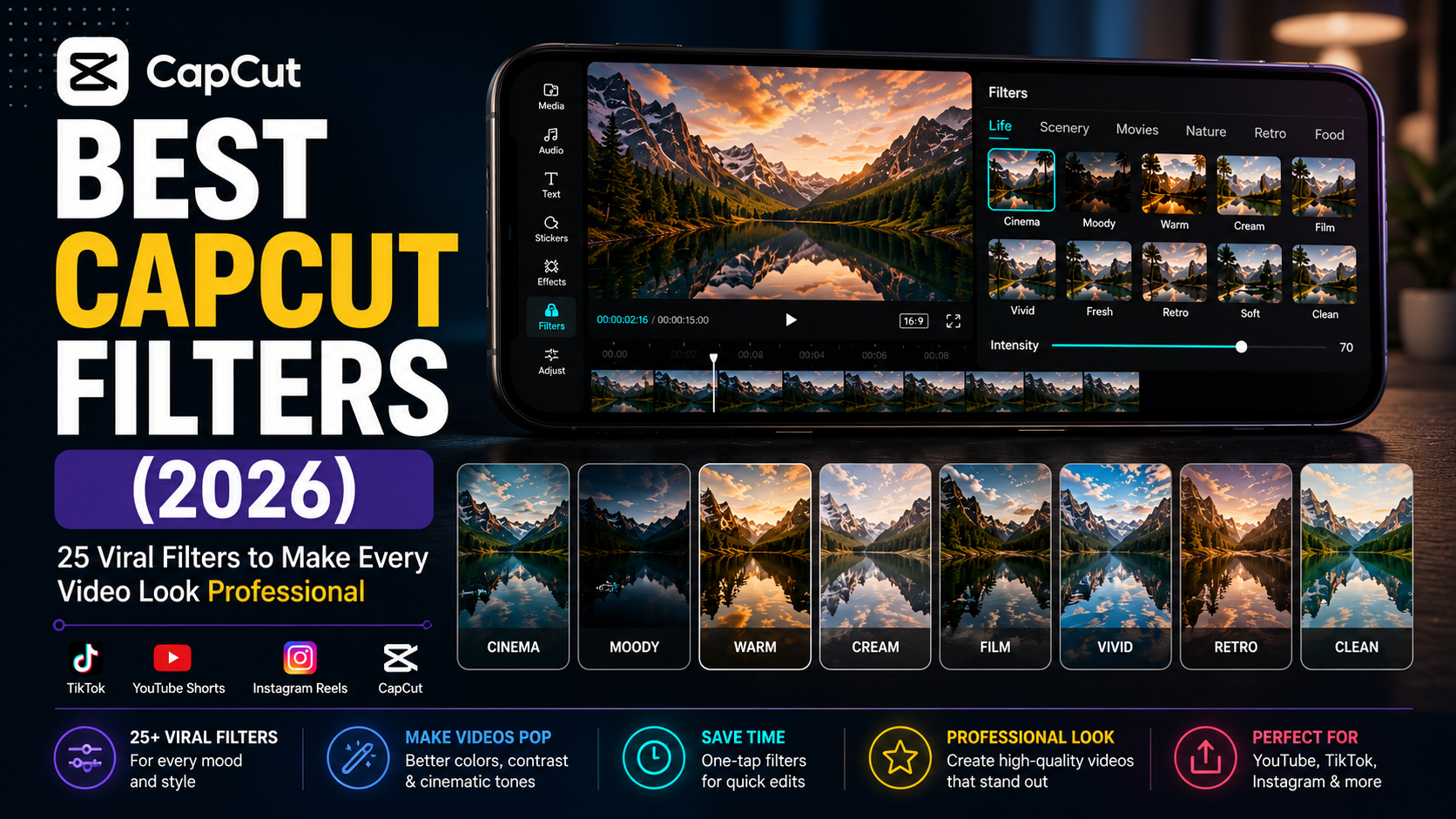
If you’ve ever watched a viral TikTok, YouTube Short, or Instagram Reel and wondered, “How does this video look so clean and cinematic?” the answer often comes down to one simple editing tool: CapCut filters.
In 2026, CapCut has become one of the world’s most popular free video editing apps, offering creators hundreds of built-in filters that can instantly transform ordinary footage into eye-catching content. Whether you’re creating travel vlogs, product videos, faceless YouTube channels, motivational reels, cinematic edits, or aesthetic lifestyle content, choosing the right filter can dramatically improve your video’s visual appeal.
But with so many options available, finding the best CapCut filters can be overwhelming.
That’s why we’ve put together this complete guide. You’ll discover the 25 best CapCut filters for 2026, learn when to use each one, understand how to combine filters with manual adjustments for professional results, and avoid common mistakes that make videos look over-edited.
Whether you’re a beginner or an experienced content creator, this guide will help you create videos that stand out across TikTok, YouTube Shorts, Instagram Reels, and other social platforms.
What Are CapCut Filters?
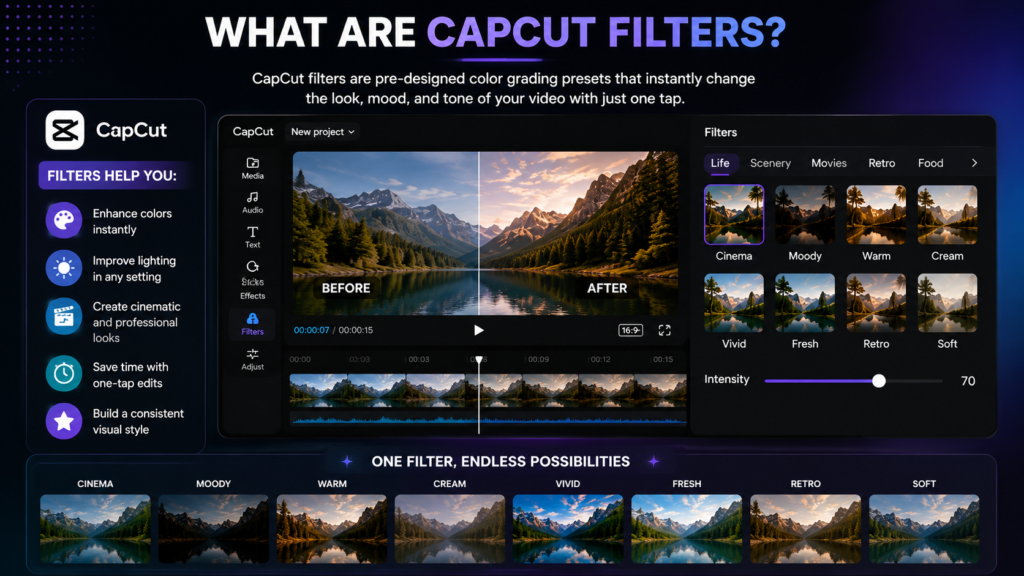
CapCut filters are pre-designed color grading presets that instantly change the appearance of your video. Instead of adjusting brightness, contrast, saturation, highlights, shadows, and temperature manually, a filter applies a professional look with just one tap.
Think of them as Instagram filters—but with much more control. After applying a filter, you can reduce its intensity or fine-tune your video using CapCut’s adjustment tools.
The right filter can make your content appear:
- More cinematic
- Brighter and cleaner
- Warm and inviting
- Dark and dramatic
- Vintage and nostalgic
- Professional and polished
For creators who post consistently, filters also help maintain a recognizable visual style, making your brand more memorable.
Why Filters Matter in 2026
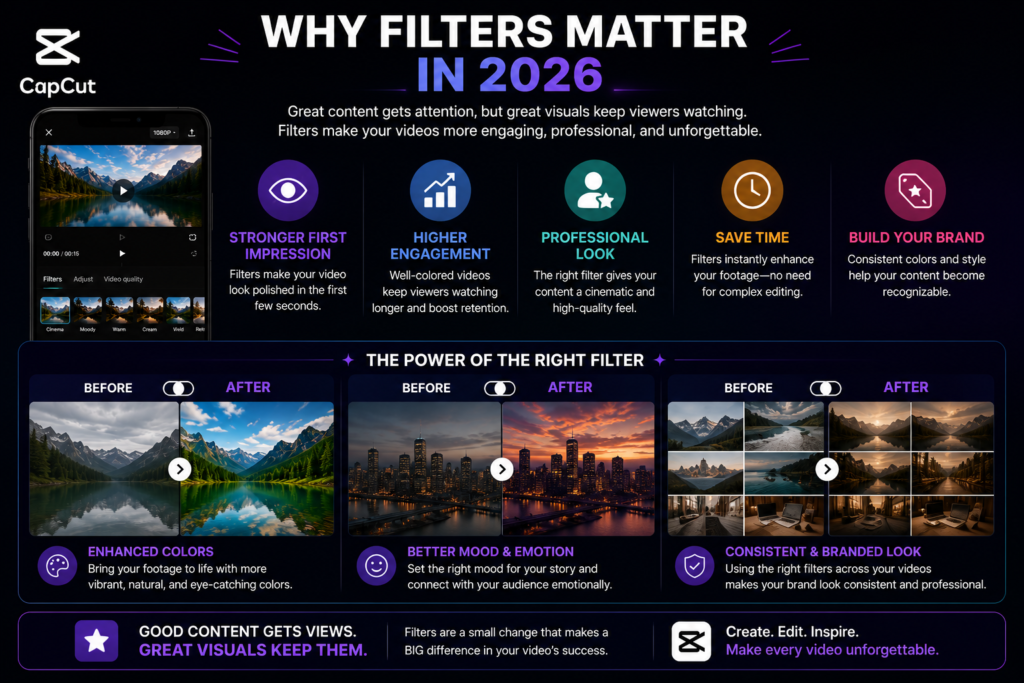
Today’s viewers decide within the first few seconds whether to keep watching a video. Strong visuals play a huge role in grabbing attention.
Using the right CapCut filter can:
- Make colors pop without looking unnatural.
- Improve low-light footage.
- Create a consistent visual identity.
- Increase watch time by making videos more engaging.
- Help your content stand out in crowded social feeds.
- Save editing time with one-tap enhancements.
However, filters work best when paired with good lighting, stable footage, and thoughtful editing. They enhance quality—they don’t replace it.
How to Apply Filters in CapCut
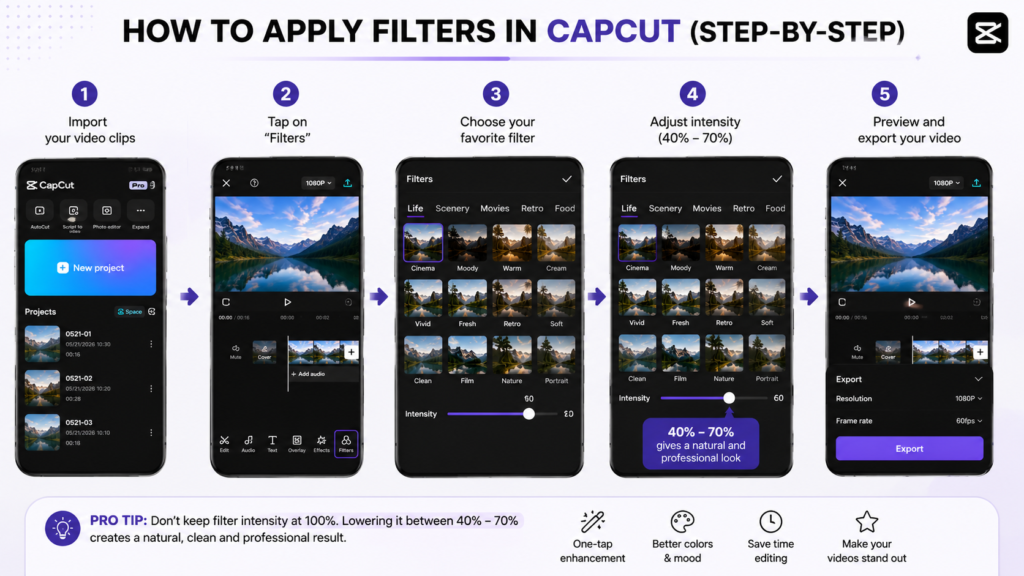
Applying a filter is simple:
- Open CapCut and create a new project.
- Import your video clips.
- Tap the Filters option in the bottom menu.
- Browse categories such as Life, Movie, Retro, Nature, Food, and Landscape.
- Select a filter that matches your video’s mood.
- Adjust the filter intensity. For most videos, 40–70% creates a natural look.
- Preview the result and make additional adjustments if needed.
- Export your video in the highest quality available.
Pro Tip: Don’t leave filters at 100% by default. Lowering the intensity often produces a cleaner, more professional result.
The 25 Best CapCut Filters in 2026
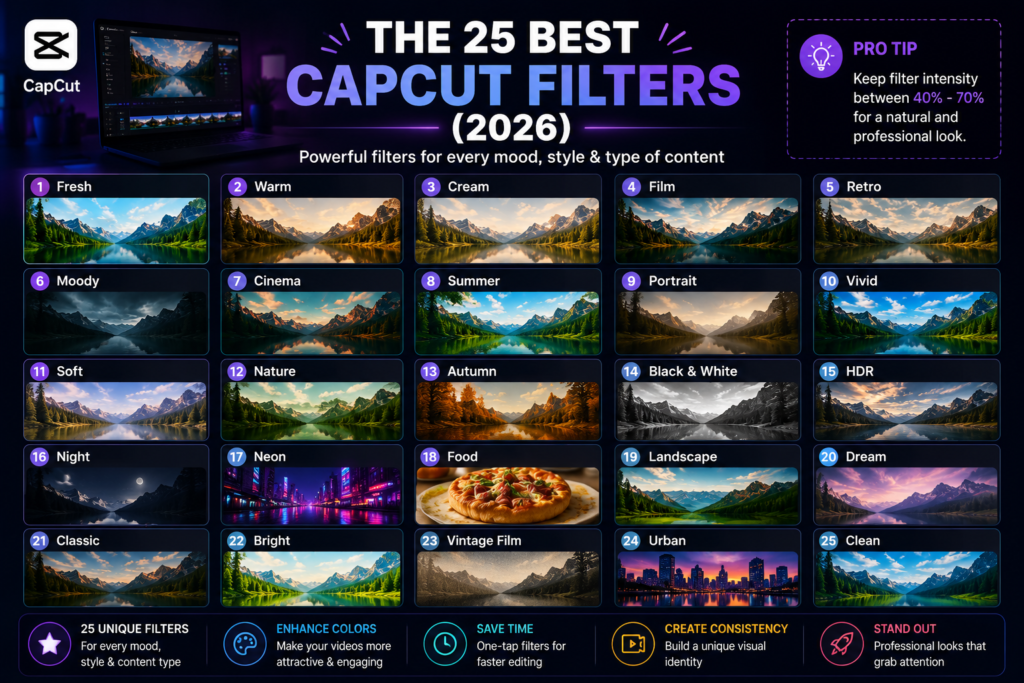
CapCut organizes its filters into different categories, such as Movie, Life, Retro, Nature, Food, Landscape, and Black & White. Each filter creates a unique mood, making it easier to match your video’s style.
Below are the 25 best CapCut filters that content creators are using in 2026.
1. Fresh
Best For: Daily vlogs, YouTube Shorts, lifestyle content
The Fresh filter brightens your footage while keeping colors natural. It’s perfect for creators who want a clean, modern look without making the video appear overly edited.
Why Use It?
- Natural skin tones
- Bright and airy appearance
- Great for indoor videos
Recommended Intensity: 50–65%
Pro Tip: Pair it with a slight increase in contrast (+8) for a sharper finish.
2. Warm
Best For: Travel videos, family moments, sunset scenes
Warm adds golden tones that make footage feel inviting and emotional.
Benefits
- Creates a cozy atmosphere
- Enhances sunsets
- Makes skin look healthier
Recommended Intensity: 45–60%
3. Cream
Best For: Fashion videos, beauty content, product showcases
Cream softens harsh colors while maintaining excellent brightness.
Perfect if you want an elegant Instagram aesthetic.
Recommended Intensity: 55%
4. Film
Best For: Cinematic storytelling
The film introduces subtle contrast and a movie-inspired color palette.
It works exceptionally well for:
- Travel films
- Documentary edits
- Emotional storytelling
- Luxury lifestyle videos
Recommended Intensity: 60%
5. Retro
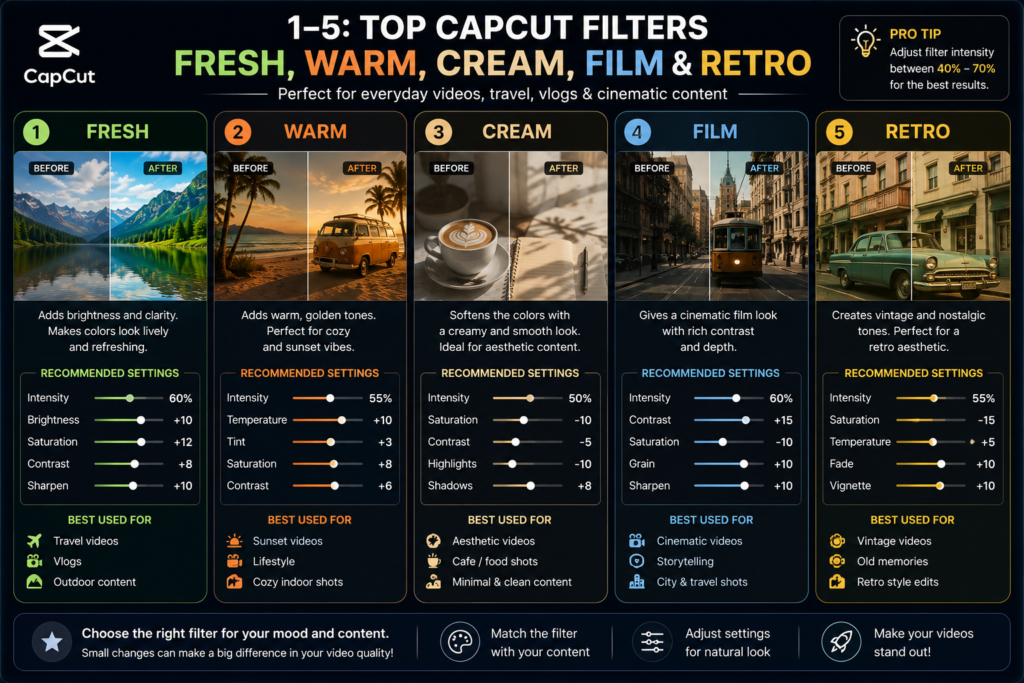
Best For: Vintage edits
Retro recreates the nostalgic look of old cameras with faded colors and soft contrast.
Ideal for:
- Throwback videos
- Memory reels
- Historical storytelling
6. Moody
Best For: Dark aesthetic videos
Moody lowers brightness while increasing dramatic contrast.
Excellent for:
- Mystery content
- Horror edits
- Motivational reels
- Luxury edits
Recommended Intensity: 45%
7. Cinema
Best For: Professional filmmaking
One of the most popular CapCut filters in 2026.
Cinema creates:
- Deep shadows
- Rich highlights
- Balanced colors
- Premium movie appearance
If you’re creating faceless YouTube content, this should be one of your go-to filters.
8. Summer
Perfect for:
- Beach videos
- Vacation content
- Outdoor adventures
This filter enhances blue skies while making greenery more vibrant.
9. Portrait
Designed specifically for people.
Benefits include:
- Smooth skin appearance
- Balanced highlights
- Natural color tones
Excellent for interviews and talking-head videos.
10. Vivid
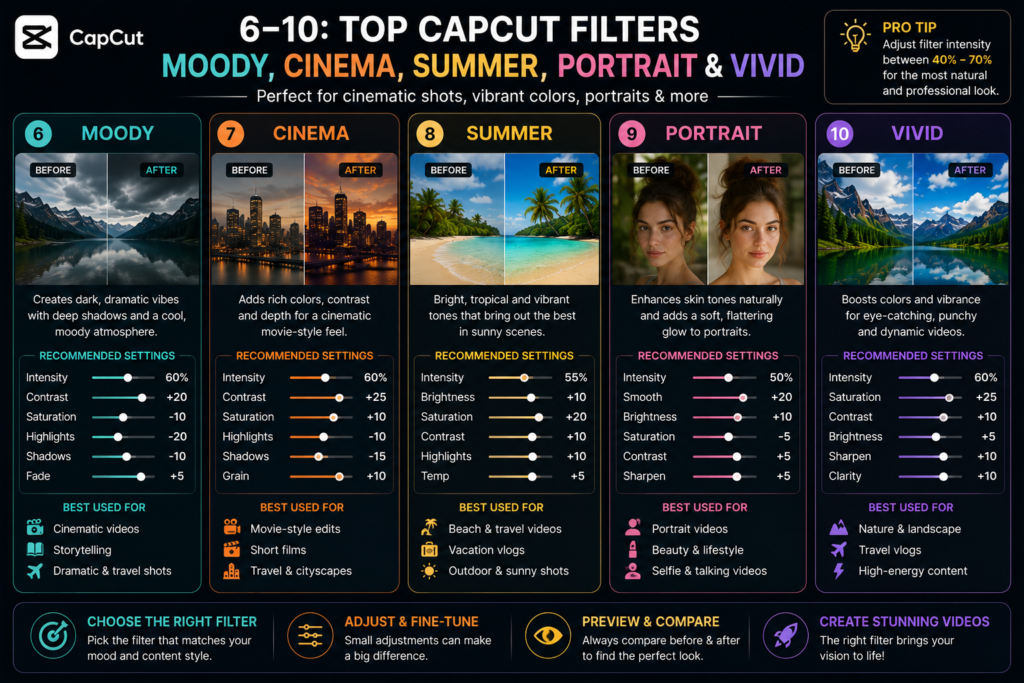
If your footage looks dull, Vivid instantly increases color intensity.
Use it carefully.
Too much saturation can look unnatural.
Best Intensity: 40–50%
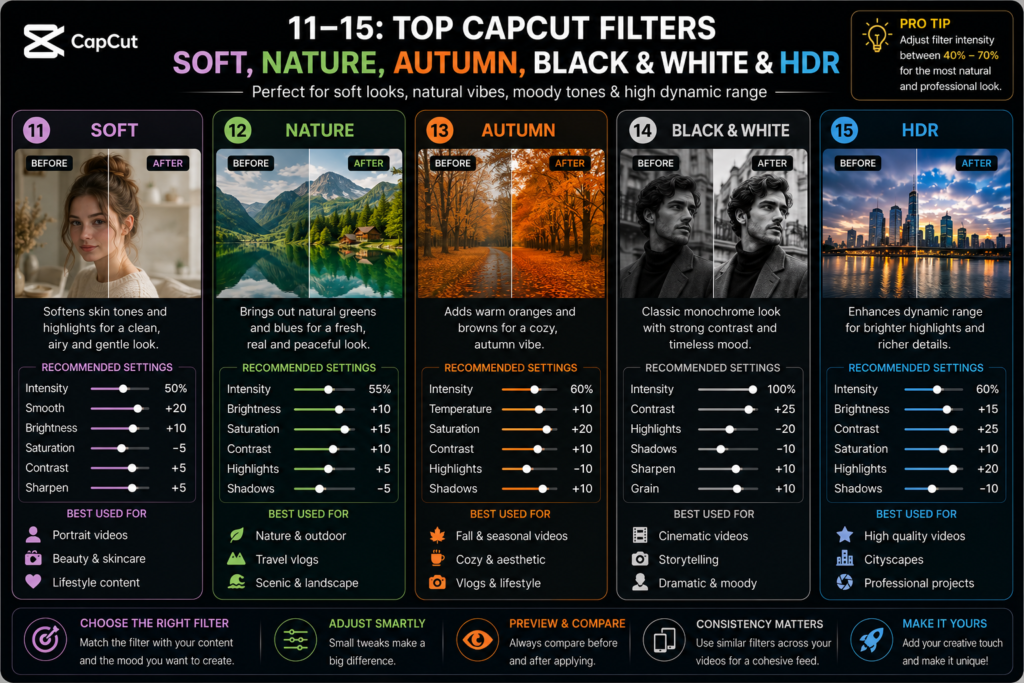
11. Soft
Soft reduces harsh shadows and creates a dreamy atmosphere.
Best for:
- Wedding videos
- Romantic edits
- Slow-motion clips
12. Nature
Nature makes landscapes stand out by improving greens, blues, and overall contrast.
Perfect for:
- Hiking videos
- Drone footage
- National parks
- Outdoor adventures
13. Autumn
Autumn emphasizes warm orange and brown tones.
Ideal for:
- Fall travel
- Coffee shops
- Cozy lifestyle content
14. Black & White
Sometimes removing color creates a stronger emotional impact.
Use this filter for:
- Storytelling
- Documentary scenes
- Dramatic transitions
15. HDR
HDR increases dynamic range, revealing more detail in shadows and highlights.
Great for:
- Smartphones
- Landscape videos
- Architecture
Avoid using it on already overexposed footage.
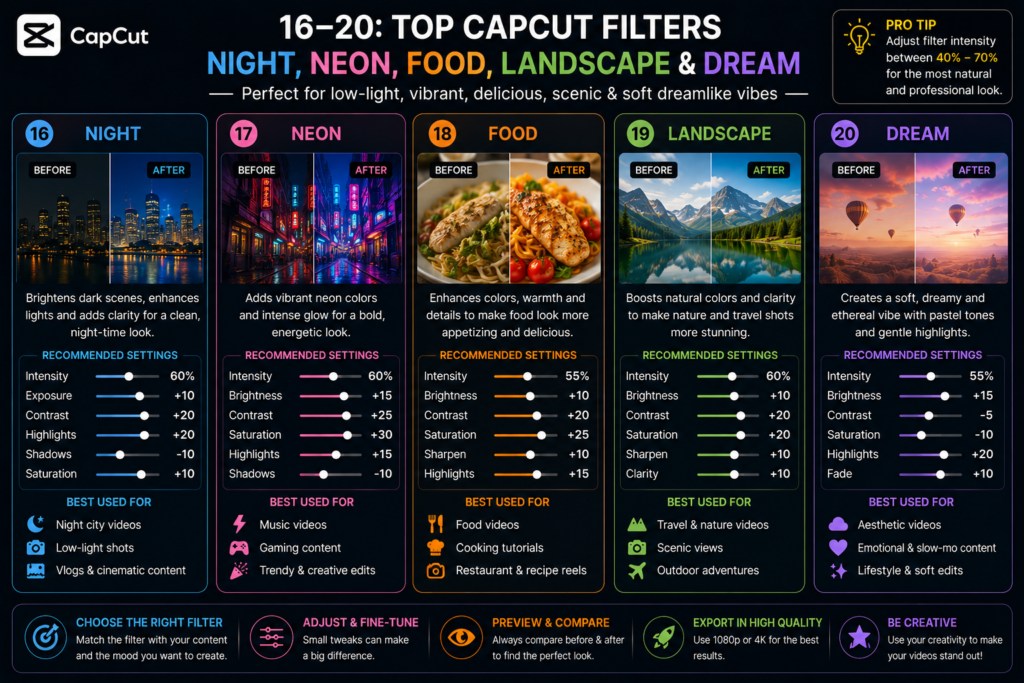
16. Night
Designed for low-light environments.
Night improves:
- Brightness
- Shadow detail
- Visibility
Use it sparingly to avoid introducing noise.
17. Neon
Perfect for gaming creators and city nightlife.
Neon enhances:
- Blue lighting
- Purple lighting
- LED signs
- Cyberpunk aesthetics
18. Food
Makes dishes look richer and more appetizing by enhancing reds, yellows, and overall contrast.
Ideal for:
- Cooking tutorials
- Café reviews
- Restaurant content
19. Landscape
One of the best choices for travel creators.
It improves:
- Mountains
- Forests
- Rivers
- Beaches
- Sky detail
20. Dream
Dream adds a soft glow and reduced contrast for a magical look.
Best for:
- Fantasy edits
- Wedding clips
- Romantic storytelling
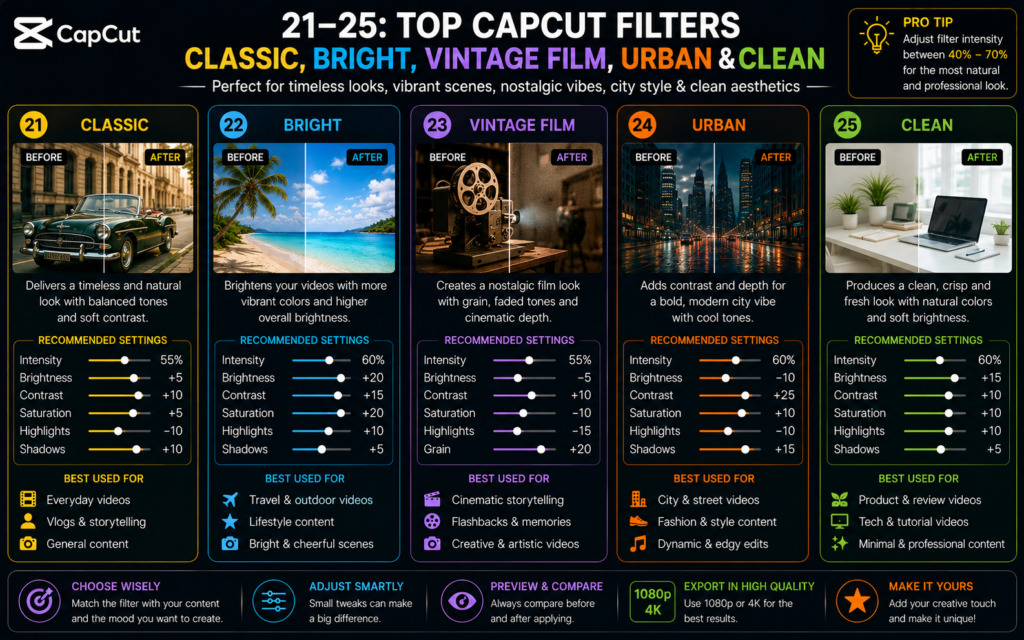
21. Classic
Classic delivers balanced colors without dramatically changing the original footage.
Perfect for beginners who want a professional look with minimal editing.
22. Bright
Bright increases exposure while preserving details.
Great for:
- Indoor videos
- Product reviews
- Office recordings
23. Vintage Film
This filter adds subtle film grain and faded colors, creating an authentic analog feel.
Use it for:
- Travel diaries
- Memory montages
- Creative storytelling
24. Urban
Urban is designed for modern city environments.
It enhances:
- Concrete textures
- Glass reflections
- Street photography
- Architecture
Ideal for vloggers and city exploration content.
25. Clean
Clean is one of the safest all-around filters.
It slightly improves:
- Contrast
- Color balance
- Sharpness
Without making the footage look artificial.
If you’re unsure which filter to use, start with Clean and adjust the intensity to match your style.
Best CapCut Filters by Content Type
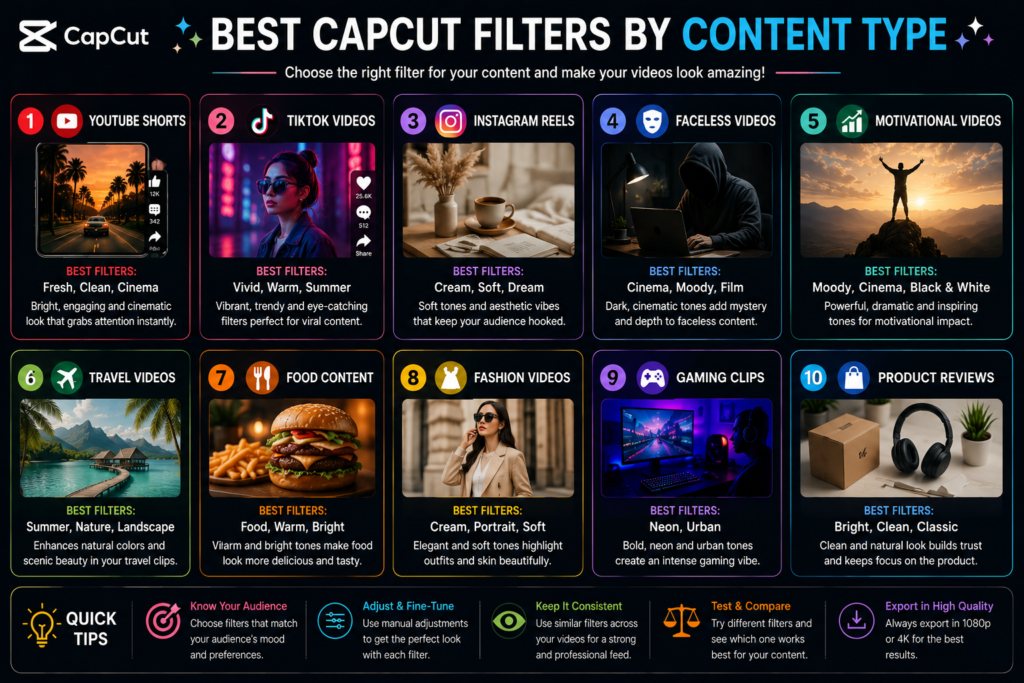
Choosing the right filter depends on the type of content you create. Here’s a quick reference guide:
| Content Type | Recommended Filters |
|---|---|
| YouTube Shorts | Fresh, Clean, Cinema |
| TikTok Videos | Vivid, Warm, Summer |
| Instagram Reels | Cream, Film, Dream |
| Faceless Videos | Cinema, Moody, Film |
| Motivational Videos | Moody, Cinema, Black & White |
| Travel Videos | Summer, Nature, Landscape |
| Food Content | Food, Warm, Bright |
| Fashion Videos | Cream, Portrait, Soft |
| Gaming Clips | Neon, Urban |
| Product Reviews | Bright, Clean, Classic |
Pro Tips for Better Results
A filter alone won’t make a video go viral. Combine it with these editing practices:
- Reduce filter intensity to 40–70% for a more natural look.
- Record in good lighting whenever possible.
- Adjust exposure and contrast after applying the filter.
- Add smooth transitions instead of excessive visual effects.
- Use clear, high-resolution footage (1080p or 4K) for the best results.
- Keep your color style consistent across videos to build a recognizable brand.
How to Combine CapCut Filters with Manual Adjustments
While CapCut filters can instantly improve your footage, the best creators rarely rely on filters alone. They fine-tune their videos using the Adjust tools to achieve a polished, professional look.
After applying your preferred filter, open Adjust in CapCut and make small changes based on your footage. Every video is different, so use these settings as a starting point rather than strict rules.
Recommended Adjustment Settings
| Setting | Recommended Range | Purpose |
|---|---|---|
| Brightness | +5 to +10 | Makes dark videos easier to see |
| Contrast | +8 to +15 | Adds depth and definition |
| Saturation | +5 to +12 | Makes colors richer without oversaturation |
| Highlights | -10 | Prevents bright areas from looking washed out |
| Shadows | +8 | Recovers details in darker areas |
| Temperature | +2 or -2 | Adjusts warm or cool tones |
| Sharpen | +10 to +20 | Creates a crisp, professional look |
| Fade | 0 to +5 | Adds a subtle cinematic softness |
| Vignette | +5 | Draws attention toward the center of the frame |
Example: Cinematic Travel Look
A simple cinematic setup might look like this:
- Filter: Cinema at 60%
- Brightness: +5
- Contrast: +12
- Saturation: +8
- Highlights: -10
- Shadows: +8
- Sharpen: +15
This combination creates a balanced, movie-inspired appearance without making the footage look over-edited.
Best CapCut Filters for Different Content Creators
Different niches benefit from different visual styles. Here are some recommendations.
For Faceless YouTube Channels
If you create motivational, educational, finance, AI, or storytelling videos, these filters work especially well:
- Cinema
- Moody
- Film
- Clean
- Classic
These filters create a premium, consistent look that suits voiceovers, stock footage, and AI-generated visuals.
For TikTok Creators
Fast-paced TikTok videos often perform well with bright, colorful filters.
Recommended filters:
- Fresh
- Summer
- Vivid
- Warm
- Dream
For YouTube Shorts
Since Shorts are viewed on many different devices, choose filters that keep colors balanced.
Recommended filters:
- Clean
- Cinema
- Fresh
- Film
For Instagram Reels
Instagram audiences often prefer elegant, polished visuals.
Recommended filters:
- Cream
- Soft
- Portrait
- Dream
For Product Reviews
If you’re showcasing gadgets, beauty products, or accessories, accurate colors matter.
Best choices:
- Bright
- Classic
- Clean
Avoid overly dramatic filters that change the product’s true appearance.
Common CapCut Filter Mistakes to Avoid
Even the best filter can hurt your video’s quality if used incorrectly.
1. Using 100% Filter Intensity
Many beginners leave the filter at full strength. This often results in unrealistic colors and loss of detail.
Tip: Reduce the intensity to around 40–70% for a more natural finish.
2. Ignoring Lighting Quality
Filters cannot fix poor lighting. Footage captured in good light will always produce better results.
3. Oversaturating Colors
Too much saturation can make skin tones appear unnatural and distract viewers.
Aim for subtle enhancements instead of extreme edits.
4. Mixing Too Many Styles
Applying several filters and heavy effects in one video can make the visuals feel inconsistent.
Choose one primary visual style and maintain it throughout the edit.
5. Forgetting Manual Adjustments
Filters are only the starting point. Small adjustments to brightness, contrast, and sharpness can make a significant difference.
Frequently Asked Questions (FAQs)
Which CapCut filter is best in 2026?
There isn’t a single “best” filter for every situation. However, Cinema, Fresh, Clean, Film, and Cream are among the most popular choices because they work well across many types of content.
Are CapCut filters free?
Yes. CapCut includes many free filters. Some premium filters may require a CapCut Pro subscription, but most creators can achieve excellent results using the free library.
Which CapCut filter is best for YouTube Shorts?
For YouTube Shorts, Clean, Cinema, Fresh, and Film provide a professional look while maintaining natural colors.
Which CapCut filter is best for TikTok?
TikTok creators often use Vivid, Warm, Summer, and Dream to create bright, eye-catching videos that stand out in the feed.
How can I make my videos look more cinematic?
Use the Cinema or Film filter, reduce highlights, increase contrast slightly, and keep the filter intensity between 50–60%. Pair this with smooth camera movement and high-quality lighting.
Can I use CapCut filters on a PC?
Yes. CapCut Desktop includes many of the same filters available on the mobile app, making it easy to edit videos across devices.
Do filters affect video quality?
Filters themselves do not reduce quality. However, exporting at a low resolution or applying extreme adjustments can make your video look less professional. Always export in 1080p or 4K with the highest bitrate available.
Final Thoughts
CapCut offers an impressive collection of filters that can transform ordinary footage into professional-looking videos with just a few taps. Whether you’re creating YouTube Shorts, TikTok videos, Instagram Reels, travel vlogs, or faceless AI content, choosing the right filter helps you establish a consistent visual identity and keep viewers engaged.
Remember that filters work best when combined with good lighting, thoughtful composition, and subtle manual adjustments. Rather than relying on a filter alone, experiment with brightness, contrast, shadows, and sharpness to develop a style that reflects your brand.
As CapCut continues to add new creative tools in 2026, staying updated with the latest filters and editing techniques will help your content remain fresh and competitive.
Start with a few of the filters recommended in this guide, test them on different types of footage, and build a workflow that saves time while delivering high-quality resu
If you found this guide helpful, explore more CapCut tutorials on FacelessAsset.com. Learn about advanced editing techniques, export settings, YouTube Shorts strategies, and AI-powered workflows to create content that looks professional and performs better across every platform.